SharePoint mapped drive keeps disconnecting or asking for a password? Here is why
Mapping a SharePoint Online library to a drive letter works on the first try and then stops surviving contact with reality: the drive drops mid-afternoon, or comes back empty after a reboot, or asks for a password that is already saved. All three come from the same place. WebDAV mappings are backed by a browser session, and a session is not a credential.
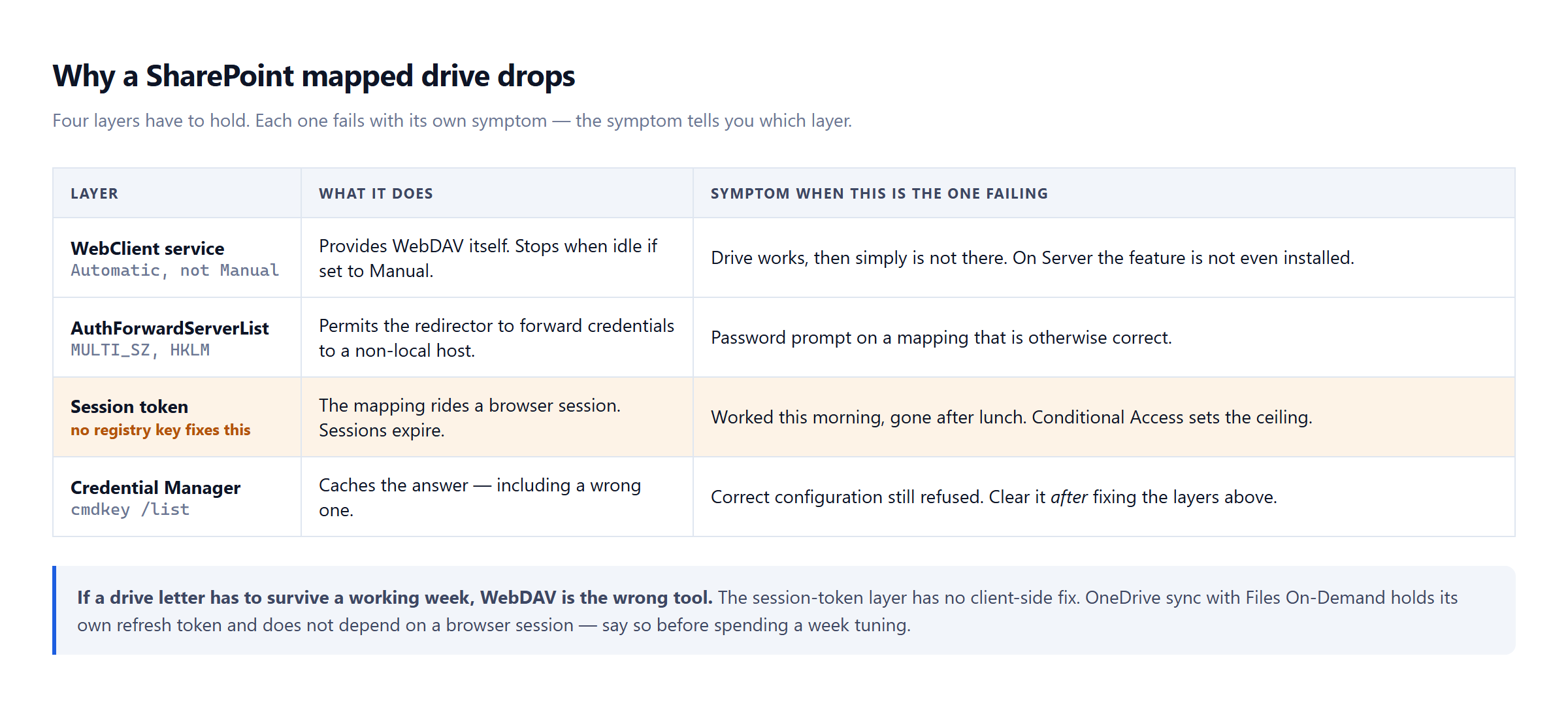
Four things decide whether the mapping lasts. Check them in this order.
1. The WebClient service — mapping cannot work without it
WebDAV in Windows is delivered by the WebClient service, and on a fresh Windows Server install the underlying feature is not present at all. On Windows client editions the service exists but is often set to Manual, which means it starts on demand and stops again when idle. That is exactly why the drive works, then quietly is not there any more.
Get-Service WebClient | Select-Object Status, StartType
Set it to start automatically so it does not go away under the mapping:
Set-Service WebClient -StartupType Automatic
Start-Service WebClient
On Windows Server the feature has to be installed first:
Install-WindowsFeature WebDAV-Redirector -Restart
The reboot there is not optional; the redirector does not load until it happens.
2. AuthForwardServerList — the missing registry value
By default the WebDAV redirector refuses to forward credentials to a server it does not consider local. Against SharePoint Online that means it never sends the token it already has, so you get a password prompt on a mapping that is technically fine.
The fix is a MULTI_SZ value listing the hosts allowed to receive forwarded credentials:
$key = 'HKLM:\SYSTEM\CurrentControlSet\Services\WebClient\Parameters'
New-ItemProperty -Path $key -Name AuthForwardServerList -PropertyType MultiString `
    -Value @('https://contoso.sharepoint.com', 'https://contoso-my.sharepoint.com') -Force
Restart-Service WebClient
Use your own tenant hostnames. Include the -my host as well if users map their OneDrive — it is a separate hostname and it is the one people forget.
This is a per-machine setting, which makes it a natural Group Policy Preferences registry item rather than something to do by hand forty times.
3. The session token expiry — the real cause of "it worked this morning"
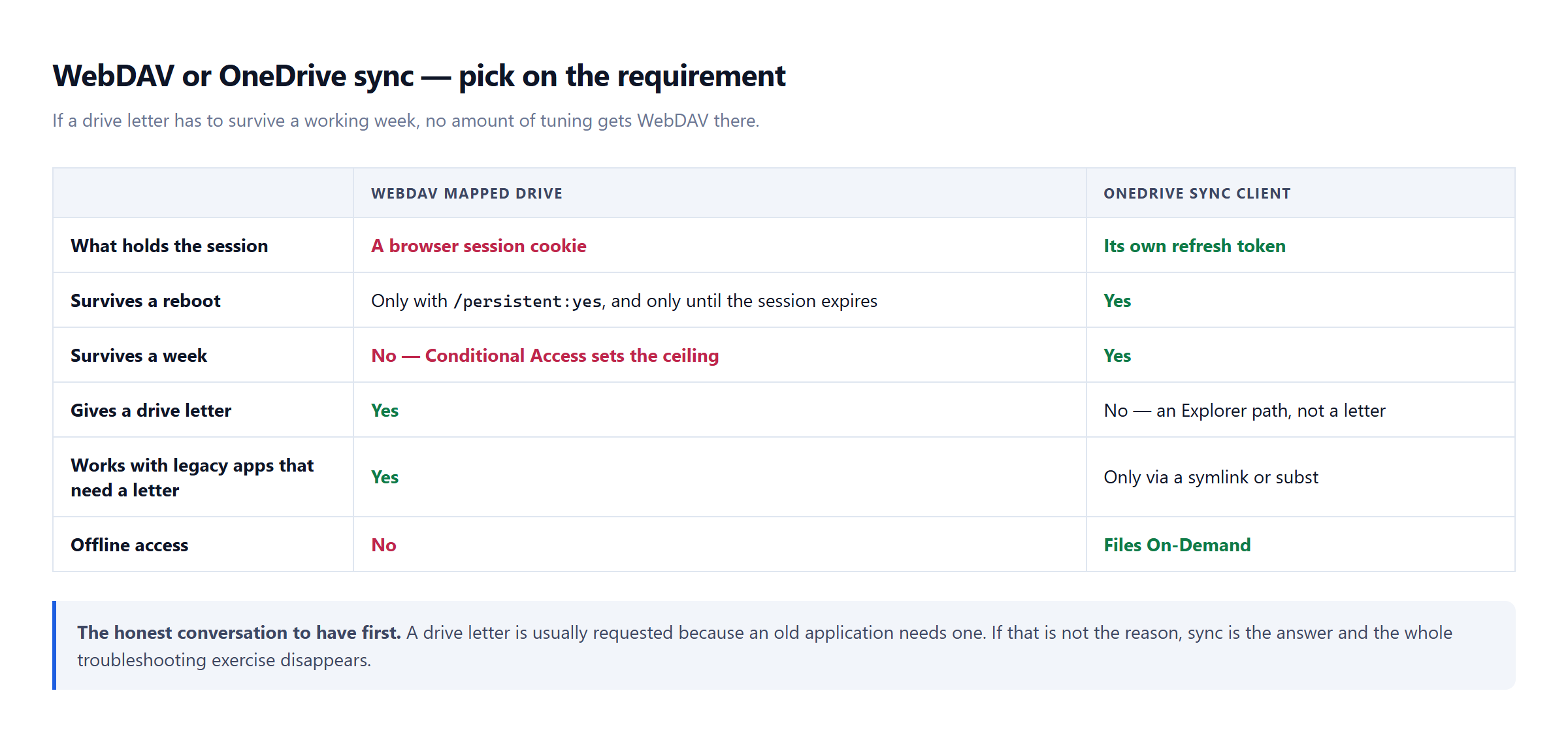
This is the part no registry key fixes. A WebDAV mapping to SharePoint Online rides on a session cookie, and that cookie expires. When it does, the drive is still mapped and every access fails or re-prompts.
Two things extend it, and it is worth being honest that neither makes it permanent:
The user must have selected Stay signed in when authenticating to the tenant. Without it the session is short by design.
The tenant's sign-in frequency policy governs the ceiling. If Conditional Access enforces re-authentication every few hours, no client-side setting will outlive it.
If your users need a drive letter that survives a full working week, WebDAV is the wrong tool and no amount of tuning changes that. The OneDrive sync client with Files On-Demand gives a real path in Explorer, keeps its own refresh token, and does not depend on a browser session. Say that out loud to the requester before spending a week on WebDAV.
4. Stale entries in Credential Manager
Once a mapping has failed authentication a few times, Windows caches the wrong answer and keeps replaying it. Clearing that is often what makes an otherwise-correct configuration start working:
cmdkey /list | findstr /i sharepoint
Remove each matching entry:
cmdkey /delete:<target-name-from-the-list>
Then remap. Do this after the first three fixes, not before — otherwise you clear the cache and the same broken configuration refills it.
Making the mapping itself reconnect
[IMAGE: net-use-command-anatomy.png — alt: "The net use command for a SharePoint library, annotated part by part"]
Two details in how the drive is created matter more than they look:
net use Z: "https://contoso.sharepoint.com/sites/finance/Shared Documents" /persistent:yes
Without /persistent:yes the mapping is gone at the next sign-in whatever else you fixed. And the path must be the document library root — pointing it at a subfolder produces a mapping that resolves inconsistently.
Verifying it survives, not just that it works
The only check worth trusting is a reboot:
Get-PSDrive -PSProvider FileSystem | Where-Object { $_.DisplayRoot -like 'http*' }
Test-Path 'Z:\'
Run that after a restart and after a lunch break. A mapping that passes immediately after being created has told you nothing — everything in this article is about the second hour, not the first minute.
If it fails with a specific error code
0x80070043 is a different problem with a different cause, not a variation of this one. It means the name cannot be resolved rather than the credential being rejected.